JTable,
JTree, JComboBox, and JList. The control
provided by Swing's models and renderers is critical to writing
high-performance, scalable GUIs.
This chapter provides an overview of Swing's component architecture, and explains how renderer objects extend this architecture to support components that display large datasets. Section 10.2 presents some tactics for improving performance by writing your code with knowledge of Swing's models in mind. Section 10.2.3 walks through a sample spreadsheet application that uses custom models and renderers to improve performance and reduce footprint.
Swing component architecture
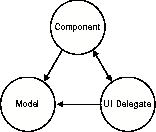
Typical Swing GUI components consist of at least three objects: a Component, a Model, and a UI Delegate. In Swing's architecture, the Model is charged with storing the data, while the UI Delegate is responsible for getting data from the Model and rendering it to the screen. The Component generally coordinates the actions of the Model and Delegate, while also acting as glue to the AWT windowing system.
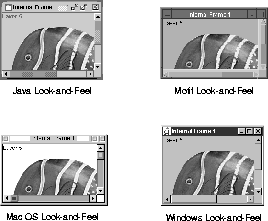
Note that the UI Delegate can be replaced at runtime. This enables Swing's pluggable look-and-feel (PLAF) system, illustrated in Figure 10-2.
While Swing's modified MVC architecture clearly provides benefits in terms of flexibility, it has often been fingered as the cause of poor performance for some applications. Although it is true that an MVC-based architecture uses more method invocations to support the extra level of indirection, this cost is minimal.
Profiling Swing-based applications shows that the overhead for model-view separation is literally lost in the noise-it's less than one percent of CPU consumption. (The bulk of processing time for a complex Swing-based user interface is actually spent on low-level graphics operations.) Rather than being a cause of poor performance, Swing's model-view architecture is critical for building scalable programs.
Swing's PLAF system
These scalable components are designed to be able to manipulate thousands, or even millions of pieces of data. To do this without using massive amounts of memory, these components add the concept of a renderer to Swing's architecture. Figure 10-3 shows the modified architecture.
JTable as an example of why renderers exist. A naively implemented
table might use a JLabel for each cell in the table. While this
might work for small datasets, it doesn't work for large ones. For example, if
you tried to display a 1,000 row by 1,000 column spreadsheet with such a table,
the RAM requirements might be close to a gigabyte, even if every cell
is empty.
Scalable component architecture
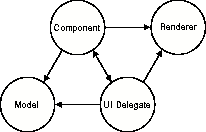
To get around this scalability problem, Swing's
JTable uses a single component to paint all of the cells that
contain a particular data type. For example, all cells that contain
String objects are drawn by the same component. This type of
component is called a renderer. Using a renderer to display multiple
cells drastically reduces the storage requirements for a large table.
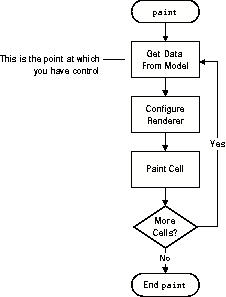
When renderers are used to display a table, the data for a cell is fetched from the model, a renderer is configured based on that data, and then the cell is painted. The renderer is then moved to the location of the next cell and the process is repeated. The procedure is shown in Figure 10-4.
It's important to note that you can control this process
by manipulating the renderers and models. All of the scalable components, such
as JTree and JList, use this renderer approach; it
isn't limited to JTable.
Rendering a component
JComboBox box = new JComboBox();
for (int i = 0; i < numItems; i++) {
    box.addItem(new Integer(i));
}
Adding items to a JComboBox
This code simply adds a number of items to a
JComboBox. The code is similar to the code you would use to load
items into an AWT Choice box. This approach works fine for small
numbers of items, but its inefficiency becomes apparent when a large number of
items are added.
Although Listing
10-1 does not explicitly reference any models, the JComboBox
object's model is involved. Each time you call addItem on
the JComboBox, a fairly substantial amount of work is done-the
component passes the request to the JComboBox model and the model
posts an event to indicate that an item has been added. It turns out that you
can accomplish the same thing much more efficiently by directly accessing the
model, as shown in Listing
10-2.
Vector v = new Vector(numItems);
for (int i = 0; i < numItems; i++) {
   v.add(new Integer(i));
}
ComboBoxModel model = new DefaultComboBoxModel(v);
JComboBox box = new JComboBox(model);
Faster JComboBox loading
Why is this faster? The reason is twofold. First, because all the items are added to the model at once instead of one by one, only one event needs to be posted. This means that fewer event objects are created and fewer methods are called. Second, because fewer objects need to be notified of changes, less work is required. In general, the amount of work done equals the number of notifications multiplied by the number of listeners. Since the model is newly created, the number of listeners is zero, which means that no notifications are posted.
Combo box load times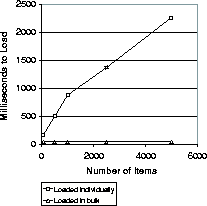
There are two lessons to be learned here:
As you can see, the first option scales very poorly. In
fact, it takes more than two seconds to load 5,000 items into the
JComboBox using the first approach. Loading the model in bulk takes
a mere 50 milliseconds.
The number of notifications can have a large effect on your program's start-up time. It can also affect the amount of time it takes to open dialog boxes and perform similar operations.
Many of the optimizations described are application-specific. Some result in small improvements in performance, and others result in significant improvements. These optimizations illustrate the types of performance improvements you can make. They aren't meant to imply that you should make these specific optimizations in your own code; instead, they're designed to help you understand Swing's component architecture and make your own custom optimizations.
SheetMetal spreadsheet application
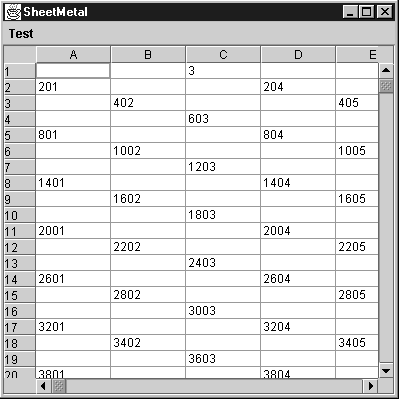
DefaultTableModel. These models are
generic and are suited to a wide variety of light-duty uses. For example, the
DefaultTableModel is implemented internally as a
Vector of Vector objects. It is quite usable for small
data sets. However, it is clearly not the fastest or most space-efficient data
structure. In general, when dealing with complex datasets, you should create
your own custom model. The Swing model-view architecture was designed to give
you this flexibility.
Let's look at the model requirements for the SheetMetal
application. Spreadsheets are often used to hold very large datasets. For this
example, we'll assume SheetMetal must be able to handle a dataset that contains
1,000 rows and 1,000 columns. If this functionality were implemented with the
DefaultTableModel, the RAM requirements would be huge.
DefaultTableModel is implemented using Vector, and
Vector is implemented in terms of an array. On a 32-bit system,
each array element is likely to use 4 bytes. That means the RAM requirements for
this data structure are approximately 1,000 x
1,000 x 4, or 4 million bytes-even before
any data is stored in the table!
When you analyze typical complex spreadsheets, you find
that they rarely contain data in all cells. A complex spreadsheet is usually
sparsely populated, with blocks of data here and there and blank cells in
between. An array-based data structure, such as DefaultTableModel,
consumes space even for empty cells. A custom, sparse model would be more
appropriate for our spreadsheet program. Listing
10-3 shows a model implemented for SheetMetal using a HashMap
as the underlying storage mechanism.
public class SpreadsheetModel extends AbstractTableModel {
   public static int DEFAULT_ROW_COUNT = 1024;
   public static int DEFAULT_COLUMN_COUNT = 1024;

   private Map sparseMatrix = new HashMap();
   private int maxRow = 0;
   private int maxColumn = 0;

   private Point tmpIndex = new Point(0,0);

   public int getRowCount() {
      return DEFAULT_ROW_COUNT;
   }

   public int getColumnCount() {
      return DEFAULT_COLUMN_COUNT;
   }
   public Object getValueAt(int row, int column) {

      tmpIndex.y = row;
      tmpIndex.x = column;
      Object returnVal = sparseMatrix.get(tmpIndex);
      if (returnVal != null) {
         return returnVal;
      } else {
         return "";
      }
   }

   public void setValueAt(Object val, int row, int column) {
      if (val == null) {
         sparseMatrix.remove(new Point(column, row));
         return;
      }
      maxRow = Math.max(row, maxRow);
      maxColumn = Math.max(column, maxColumn);
      sparseMatrix.put(new Point(column, row), val);
   }

   public boolean isCellEditable( int row, int column ) {
      return true;
   }

   public int getMaxRow() {
      return maxRow;
   }

   public int getMaxColumn() {
      return maxColumn;
   }
}
A sparse TableModel
The advantage of this custom data structure is that it starts out very small and grows as more data is added. Where the array-based structure uses several megabytes of memory when it's created, this one uses only about a kilobyte.
Although this structure is somewhat slower than an array-based structure, profiling shows that the overhead is only about 1 percent of the overall time it takes to render the table.
Obviously, it wouldn't make sense to always use a sparse
model like this one. If the data is truly dense, the storage requirements for
this type of structure are far greater than for the array-based structure. The
point is to keep in mind that you have complete control over how your data is
stored. Using a custom model can result in a large savings-and using the wrong
model can carry a hefty penalty. This tactic isn't limited to
JTable; you can use custom models with other controls as well.
JTable,
JTree, or JList. However, custom renderers can also
sometimes be used to improve performance. Conversely, when implemented poorly,
custom renderers can be highly detrimental to your program's performance. It's
crucial that you understand the renderer mechanism so you can make the right
implementation decisions.
As shown in Figure
10-4, each time a cell in a JTable is drawn, the data is
fetched from the model and used to configure the renderer. The renderer is then
used to draw the contents of the cell. The previous section mentions that it is
common for spreadsheet data to be sparse-many cells are totally empty. Although
the DefaultTableCellRenderer is smart enough not to draw anything
for empty cells, there is still a lot of configuration and setup overhead for
each cell. Since we know that the data for the SheetMetal application is sparse,
we can write a custom renderer that is optimized for sparse data. This renderer
is shown in Listing
10-4.
public class FastStringRenderer extends DefaultTableCellRenderer {

   Component stubRenderer = new NothingComponent();

   public Component getTableCellRendererComponent(JTable table,
                                                  Object value,
                                                  boolean isSelected,
                                                  boolean hasFocus,
                                                  int row,
                                                  int column) {

      if ( ((String)value).length() == 0 &&
           !isSelected && !has-Focus) {
         return stubRenderer;
      }

      return super.getTableCellRendererComponent(table, value,
                                                 isSelected,
                                                 hasFocus,
                                                 row, column);
   }

   class NothingComponent extends JComponent {
      public void paint(Graphics g) {
         // Do Nothing
      }
   }
}
Sparse data renderer
This sparse data renderer short-circuits the normal
rendering process in two ways. First, it checks to see if the cell is empty (the
string length is zero). Second, it checks to make sure that the cell isn't
selected and doesn't have the focus. If the cell doesn't meet these conditions,
the cell needs to be drawn and should be processed normally. To process the cell
normally, the inherited version of getTableCellRendererComponent is
called. This implementation sets up the component and returns the cell settings,
such as its colors, borders, and other properties.
If the cell meets all of the conditions-the cell is
totally empty, it isn't selected, and doesn't have the focus-all of the setup
operations are bypassed and a NothingComponent is returned.
Avoiding the setup costs eliminates numerous unnecessary method invocations.
The other optimization implemented in the fast renderer
is that NothingComponent overrides the paint method so
it doesn't do anything. Although the DefaultTableCellRenderer is
smart enough to detect that the cell is empty and not draw anything, it still
performs a considerable amount of setup and computation. By totally canceling
out the call to paint, this unnecessary work is avoided.
Table 10-1 shows a spreadsheet's scrolling speed with the default renderer and with the sparse data renderer. Measurements for both renderers are shown with different amounts of data in the spreadsheet: empty, sparsely populated, and densely populated. The time is the number of milliseconds it took to scroll through 200 rows of the table.
While this particular optimization isn't necessarily appropriate in all cases, it demonstrates that controlling the rendering process by implementing a custom renderer can be a worthwhile optimization. In your own programs, this tactic might open up opportunities for caching, short-circuiting, or other aggressive optimizations.
While custom renderers can improve performance, they can be a major problem if implemented incorrectly. One common mistake that we've seen several developers make can lead to poor performance or even cause a program to terminate with an OutOfMemoryError.
One of the main reasons that the renderer subsystem
exists is that it would require too many resources to represent each table
cell with a separate Take another look at Listing
10-4. Note that a single instance of The key is to reuse the same instance each time,
changing only the configuration information each time you return it.
Otherwise, you're likely to create thousands of |
JComponent. The row
header in the SheetMetal application provides an example of this. Swing provides
an easy-to-use mechanism to label table columns, but doesn't provide one for
rows. Fortunately, it is fairly easy to create one.
The simplest way to label rows is to create a new table
to act as the row header. This JTable customizes both the model and
the renderer. Listing
10-5 shows the SpreadsheetRowHeader used in SheetMetal.
SpreadsheetRowHeader contains two inner classes:
RowHeaderRenderer and RowHeaderModel.
public class SpreadsheetRowHeader extends JTable {
   TableCellRenderer render = new RowHeaderRenderer();

   public SpreadsheetRowHeader(JTable table) {
      super(new RowHeaderModel(table));
      configure(table);

   }
   protected void configure(JTable table) {
      setRowHeight(table.getRowHeight());
      setIntercellSpacing(new Dimension(0,0));
      setShowHorizontalLines(false);
      setShowVerticalLines(false);
   }

   public Dimension getPreferredScrollableViewportSize() {
      return new Dimension(32, super.getPreferredSize().height);
   }
   public TableCellRenderer getDefaultRenderer(Class c) {
      return render;
   }

   static class RowHeaderModel extends AbstractTableModel {
      JTable table;
      protected RowHeaderModel(JTable tableToMirror) {
         table = tableToMirror;
      }
      public int getRowCount() {
         return table.getModel().getRowCount();
      }
      public int getColumnCount() {
         return 1;
      }
      public Object getValueAt(int row, int column) {
         return String.valueOf(row+1);
      }
   }
   static class RowHeaderRenderer extends DefaultTableCellRenderer {
     public Component getTableCellRendererComponent(JTable table,
                                                     Object value,
                                                     boolean isSelect,
                                                     boolean hasFocus,
                                                     int row,
                                                     int column) {

         setBackground(UIManager.getColor("TableHeader.background"));
         setForeground(UIManager.getColor("TableHeader.foreground"));
         setBorder(UIManager.getBorder("TableHeader.cellBorder"));
         setFont(UIManager.getFont("TableHeader.font"));
         setValue(value);
         return this;
      }
   }
}
Table row header
RowHeaderRenderer is in charge of actually
drawing the cells of the row header. From a performance perspective, there's
nothing particularly interesting about the RowHeaderRenderer class.
It simply configures itself to look like Swing's built-in column headers by
accessing values from the UIManager.
RowHeaderModel controls how the table data
is stored. From a performance perspective, the RowHeaderModel class
is quite interesting. Since it's possible to have literally millions of rows in
a JTable, it would be nice if the row header's storage requirements
were not bound to the number of rows in the table. This is exactly how
RowHeaderModel works. As a result, it uses virtually no storage and
its RAM requirements don't grow with the number of rows in the table. The only
storage allocated by RowHeaderModel is a reference to the
JTable that it is labeling. The RowHeaderModel
getValueAt method simply converts the row number passed to the
method into a String-no long-term storage is allocated.