
User Manual

|
J2TablePrinter 1.2
User Manual |
|
Using J2TablePrinter as a class
It is easiest to use J2TablePrinter programmatically as a simple class. J2TablePrinter is distributed in the package com.wildcrest.j2tableprinter. A com folder with a wildcrest subfolder with a j2tableprinter subfolder containing the J2TablePrinter classes should be placed somewhere in your classpath (see Installation instructions).
You may find it useful to begin your program with:
import com.wildcrest.j2tableprinter.*;
or you may make calls to J2TablePrinter with the full package name:
com.wildcrest.j2tableprinter.J2TablePrinter();
J2TablePrinter is instantiated with a zero-argument constructor:
J2TablePrinter printer = new J2TablePrinter();
Alternatively, you can use the single-argument J2TablePrinter constructor:
J2TablePrinter printer = new J2TablePrinter(jtable);
followed by a call to the zero argument print method:
printer.print();
Another alternative is that you can use the zero-argument J2TablePrinter
constructor:
J2TablePrinter printer = new J2TablePrinter();
followed by the J2TablePrinter setTable method:
printer.setTable(jtable);
followed by a call to the zero argument print method:
printer.print();
The following is a simple but complete Java program (J2TablePrinterSimpleTest.java) that prints using J2TablePrinter:
import javax.swing.*;
import javax.swing.text.*;
import com.wildcrest.j2tableprinter.*;class J2TablePrinterSimpleTest{
static J2TablePrinter printer;
static String[] columns = {"Company Name", "Symbol", "99 Rank", "97 Rank", "Revenues"};
static Object[][] data = {
{"General Motors", "GM", "1", "1", "$161,315"},
{"Ford Motor", "F", "2", "2", "$144,416"},
{"Wal-Mart", "WMT", "3", "4", "$139,208"},
{"ExxonMobil", "XOM", "4", "3", "$100,697"},
{"General Electric", "GE", "5", "5", "$100,469"},
{"IBM", "IBM", "6", "6", "$81,667"},
{"Citigroup", "C", "7", "40", "$76,431"},
{"Philip Morris", "MO", "8", "10", "$57,813"},
{"Boeing", "BA", "9", "36", "$56,154"},
{"AT&T", "T", "10", "7", "$53,588"}};static public void main(String args[]){
JFrame frame = new JFrame("J2TablePrinter test");
frame.getContentPane().setLayout(new java.awt.BorderLayout());
frame.setSize(500,250);
frame.addWindowListener(new java.awt.event.WindowAdapter() {
public void windowClosing(java.awt.event.WindowEvent e) { System.exit(0); }});JTable table = new JTable(data, columns);
frame.getContentPane().add(new JScrollPane(table), "Center");printer = new J2TablePrinter(table);
JButton print = new JButton("Print");
frame.getContentPane().add(print, "South");
print.addActionListener(new java.awt.event.ActionListener() {
public void actionPerformed(java.awt.event.ActionEvent e) { printer.print(); }});frame.setVisible(true);
}
}
Most of the methods of J2TablePrinter are set and get methods for
controlling its property values. The full list of J2TablePrinter methods,
what they do, and their default values are given in the J2TablePrinter
Javadoc documentation.
If J2TablePrinter.jar is properly installed, you will see the J2TablePrinter bean in the component palette of your visual programming environment. Click on the J2TablePrinter bean and drop it on your work area. You will see a J2TablePrinter printer icon representing the bean. You can set J2TablePrinter's "visible" property to false so that you can see this icon during development time but not at run-time as part of your application.
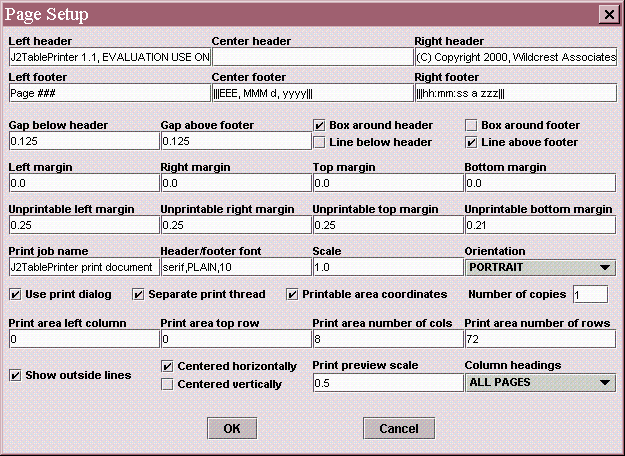 When
you bring up the property sheet for J2TablePrinter, you will be able to
see and edit all the properties supported by J2TablePrinter (see Page Setup,
right). The properties may be set as desired, with values as defined
in the J2TablePrinter Javadoc documentation.
When
you bring up the property sheet for J2TablePrinter, you will be able to
see and edit all the properties supported by J2TablePrinter (see Page Setup,
right). The properties may be set as desired, with values as defined
in the J2TablePrinter Javadoc documentation.
You can make the J2TablePrinter bean print by using your visual programming environment to perform event wiring from an actionPerformed event such as a button push to the J2TablePrinter "print" event target method. J2TablePrinter inherits from JComponent and exposes all the regular inherited JComponent methods such as show, hide, enable, disable, etc.
All the J2TablePrinter properties are bound properties. You may use your visual programming environment to do property-to-property binding in either direction between J2TablePrinter and your other beans. None of the J2TablePrinter properties are constrained properties. This frees you from having to place try...catch blocks around your "set" calls in regular programming.
J2TablePrinter is fully serializable. After customizing any of
its properties, a J2TablePrinter instance can be saved along with
any other beans to which they may be wired. When reloaded, the J2TablePrinter
bean will come back with its customized values. No J2TablePrinter
properties are declared transient.
Using advanced features of J2TablePrinter
This section describes a number of the special features of J2TablePrinter and how to use them.
Headers and footers, boxes and lines
J2TablePrinter lets you separately set the left, center, and right
headers and footers. Any of these can be empty. Any of these
can also contain page numbering and date and time formatting (see Javadoc
descriptions for the header and footer methods). You can also
have the header by itself, surrounded by a box, or underlined. You
can likewise have the footer by itself, surrounded by a box, or overlined.
You can only specify a single font for both the header and footer.
If you wish to have no header and/or no footer and have the body of your
document use this space, set the left, center, and right sections to be
empty. If all the header and/or footer strings are empty, J2TablePrinter
will automatically omit drawing the box around
the header and/or footer, the line below the header and/or above the
footer and the gap below the header and/or above the footer and use this
extra
space for the body of the document.
NOTE: In the current version of J2TablePrinter, there
is nothing to prevent your using long strings in your headers or footers
and as a consequence have the left, right, and/or center headers or footers
overlap or extend beyond the specified margins or outside the boxes and
lines.
Variable Row and Column Sizes
J2TablePrinter supports the printing of columns with different widths
in both JDK 1.2 and JDK 1.3. Column widths are specified using the
Java API:
table.getColumnModel().getColumn(intColumnIndex).setPreferredWidth(desiredWidth));
J2TablePrinter supports the printing of rows with different heights
beginning in JDK 1.3, where this capability has been added as a new JTable
feature. Row heights are specified using the new Java API:
table.setRowHeight(intRowIndex, desiredHeight);
Unprintable margins
Virtually all printers have some space around the four edges of the
page that are unprintable. Some operating systems (e.g. Macintosh) use
a printing coordinate system that corresponds to the printable area.
Other operating systems (e.g. Unix) cannot detect the printable area and
use instead a printing coordinate system that corresponds to the entire
physical page (and therefore will not print at some coordinate positions).
Due to changes made by Sun, Windows under JDK 1.2.2 behaves like Macintosh,
but under JDK 1.3, Windows behaves like Unix. Like most end-user
applications, J2TablePrinter defines its left, right, top, and bottom margins
relative to the physical page, so that specifying a 1" margin results in
a real 1" margin on the physical page. For this to work, J2TablePrinter
needs to know the size of the unprintable left, right, top, and bottom
margins for the current printer and whether your OS is one of those that
defines its coordinate system as the printable area.
J2TablePrinter provides properties you can use to control these values
yourself. In addition, Java 2 has a method validatePage
that is supposed to allow J2TablePrinter to determine the unprintable margins
automatically. However, it is unimplemented in JDK 1.2.2 and JDK
1.3beta (see Bug
Parade 4252108), so on these releases a set of values typical of HP
ink jet printers is used. The validatePage method works
correctly in JDK 1.3final, and J2TablePrinter 1.1 uses it to determine
the correct values for the unprintable margins for any printer. In
addition J2TablePrinter automatically detects your OS and Java version
and sets the value of the J2TablePrinter property
printableAreaCoordinates
to be
true for Macintosh and Windows under JDK 1.2 and false
for Unix and Windows under JDK 1.3. For any other OS, you will need
to set this value yourself (the default is false, i.e., Unix-like).
J2TablePrinter WYSIWYG support
J2TablePrinter inherently performs WYSIWYG printing since it images
your JTable instance directly using the Java print and paint methods.
This means you will print all of your JTable's specified fonts, row and
column sizes, row and column spacing and alignment, column headings, gridlines,
colors, etc. If you subclass JTable and provide your own custom cell
renderers, these also will be displayed and printed. The general
rule is: whatever your JTable can display, J2TablePrinter will print.
You may wish to use the JTable column autosizing feature to expand the
width of your JTable columns to fit to the available printing area.
To this end, the J2TablePrinter methods getBodyWidth() and getBodyHeight()
are
provided to allow you to find out these values given the current printer,
margin, header and footer settings. You can then use the
JTable.setSize()
method to cause your JTable to resize and fully utilize the available space
in accordance with your current autosizing settings.
Percentage and fit-to-page scaling
J2TablePrinter can rescale the size of your printed JTable in two ways.
First, you can call the J2TablePrinter method setScale(double scale).
Setting the value of scale to 1.0 results in unscaled (100%) printing.
Setting this value to greater than 1.0 or less than 1.0 will cause magnification
or minification, respectively.
The second way to control print scaling is J2TablePrinter's "fit-to-page" feature. You can invoke this feature by calling the J2TablePrinter method setMaximumPages(int pagesWide, int pagesHigh). This method is patterned after the similar feature in Microsoft Excel. The setMaximumPages method causes your JTable to be scaled down until it fits within pagesWide x pagesHigh pages. Like Excel, this method cannot be used to magnify and instead will only minify your JTable (hence the name setMaximumPages). The method works by starting at a scale of 1.0 and reducing the scale in increments of 0.005 (half a percent) until the JTable wide fits within both pagesWide and pagesHigh (at which time the actual number of pages may be less than either or both of these values). If either pagesWide or pagesHigh is set to 0.0 or less, this is taken as a signal that the scaling of the JTable in this dimension can be whatever it wants to be in order to achieve the fit-to-page scaling in the other dimension. J2TablePrinter always uses the same scaling factor horizontally and vertically.
The percentage and fit-to-page scaling features interact. You can call setMaximumPages(int pagesWide, int pagesHigh) to specify a number of pages using the fit-to-page feature and then use the method getScale() to find out the resulting scaling factor. Or you can call setScale() to scale your JTable to a desired percentage and then use the methods getNumberOfPagesWide() and getNumberOfPagesHigh() to find out the number of pages this results in. These methods work for both magnification and minification (thus you could use them to implement your own fit-to-page feature for magnification, which you might call setMinimumPages(pagesWide, pagesHigh)).
NOTE: Due to imprecision in Java2D image scaling, minification
can sometimes result in the dropping of gridlines in either display and/or
printing.
Page printing order
For large JTables that span multiple pages, J2TablePrinter allows you
to control the order in which the pages print out, either row order
or column order. Row order means the pages are printed left-to-right
for the first rows across the whole width of the table, and then left-to-right
for subsequent rows working down the page. Row order is often described
as "over then down". The alternative, column order, means that pages
are printed top-to-bottom for the first columns down the whole height of
the table, and then similarly for subsequent columns. Column order
is often described as "down then over".
The page printing order can be specified using the J2TablePrinter method
setRowOrderPrinting(boolean).
The default value is true, i.e., the default is row order, "over
then down".
Print preview scaling
J2TablePrinter allows you to control the scaling of the print preview
image using the J2TablePrinter method setPrintPreviewScale(double scale).
The default value for scale is 0.5. It is useful to set
this value to 1.0 or larger when programming various features of JTable
or J2TablePrinter.
Centered printing
J2TablePrinter will print your JTable either centered horizontally
on the page or left justified against the left margin. This option
is specified using the J2TablePrinter method setCenteredHorizontally(boolean).
The default value for centeredHorizontally is true.
Similarly, J2TablePrinter will print your JTable either centered vertically
on the page or top justified against the gap below the header which itself
is below the top margin. This option is specified using the J2TablePrinter
method setCenteredVertically(boolean). The default value
for centeredVertically is false.
Border and gridline control
Since J2TablePrinter performs its imaging using the JTable print and
paint methods, you can control the printing of your gridlines using the
JTable methods setGridColor(), setShowHorizontalLines(), and
setShowVerticalLines().
JTable does not itself include a border, and J2TablePrinter does not
print any Border you may have surrounding your JTable. Instead, as
a convenience, J2TablePrinter will optionally print a border around the
outside of your JTable with the same appearance (color, etc.) as your JTable
gridlines. This feature may be turned on or off using the J2TablePrinter
method setShowOutsideLines(boolean).
Customizing the print preview page setup dialog
The J2TablePrinter print preview dialog includes a "Page Setup" button,
which by default brings up the standard Java page setup dialog. This
is the same dialog as displayed by the J2TablePrinter method showPageSetupDialog().
If you which to substitute a different page setup dialog, use the J2TablePrinter
method setPrintPreviewPageSetupDialog(dialog) with which
you can specify any Dialog (or JDialog) of your choosing. Calling
this method with the value null as the argument instructs J2TablePrinter
to revert to using the standard Java page setup dialog.
It is also possible to omit the Page Setup button entirely from the
Print Preview dialog using the method showPrintPreviewPageSetupButton(boolean)
with its boolean argument set to false.
Print preview localization
Beginning with J2TablePrinter 1.2, the strings used in the print preview
dialog buttons and progress report are accessed as localizable properties
following the standard Java resource conventions. You can either
set the overall default locale for your application, for example:
java.util.Locale.setDefault(java.util.Locale.FRANCE);
Or you can set the locale individually for each JTable you wish to
print, for example:
yourJTable.setLocale(java.util.Locale.FRANCE);
The test application J2TablePrinterTestApplication contains sample
code (commented out) that illustrates how to change the locale.
The files J2TablePrinter.properties (default), J2TablePrinter_en.properties, and J2TablePrinter_fr.properties that appear in the com.wildcrest.j2tableprinter folder can be used as a starting set for localizing resource string values. Because you may have embedded spaces in your resource strings, you can optionally enclose the strings in quotes ("), which will be removed by J2TablePrinter.
The optional Date/Time specifiers in the headers and footers of printed
documents are also localized following the standard Java conventions.
"Silent" printing
By setting J2TablePrinter.setPrintDialogUsed(false), you can
make J2TablePrinter print "silently", that is, without displaying a blocking
Print Dialog. This capability is essential for server applications
and is also useful in certain client applications. In this case printing
will automatically use the default printer for your system. Also,
under both JDK 1.2.2 and 1.3beta, it will print exactly one copy
and ignore the value you may have set using J2TextPrinter's setNumberOfCopies(int)
method.due to a bug present in these releases, but this is fixed in 1.3
final (see Bug
Parade 4168555).
Print area
J2TablePrinter allows you to specify a subarea of contiguous JTable
rows and columns to be printed. The subarea of the JTable may be
specified using the J2TablePrinter method setPrintArea(firstColumnIndex,
firstRowIndex, numberOfPrintingColumns, numberOfPrintingRows). If
either firstColumnIndex or firstRowIndex is less than
0, the value 0 will be used instead. If either numberOfPrintingColumns
or numberOfPrintingRows is less than 0, then the printing area
will extend through the rightmost column or bottommost row, respectively.
Likewise, if the values of firstColumnIndex+numberOfPrintingColumns
or firstRowIndex+numberOfPrintingRows extend beyond the rightmost
column or bottommost row, the printing area will end at the rightmost column
or bottommost row, respectively.
The method getPrintArea() returns in a Rectangle object the values of firstColumnIndex, firstRowIndex, numberOfPrintingColumns, and numberOfPrintingRows as the Rectangle's x, y, width, and height values, respectively. The values returned will be the actual values for the current JTable that result from the most recent setPrintArea call.
The print area feature can easily be adapted to implementing a "print
selection" feature common to many client applications since you can query
the current selection and set the print area accordingly. In addition,
non-default page breaks can be implemented by using the print area feature
to print successive page-sized areas of your own choosing.
Pageable support
J2TablePrinter supports the Java Pageable interface. This means
that for the JTable you specify it implements four methods
getNumberOfPages(),
which returns the number of pages the paginated JTable will span (1...n)
getPrintable(pageIndex),
which returns a Printable instance for a single page (0...n-1) of the paginated
JTable
getPageFormat(pageIndex),
which returns a PageFormat instance for a single page (0...n-1) of the
paginated JTable
paint(Graphics, PageFormat,
pageIndex), which is a callback method Java uses to perform the actual
printing of this page (0...n-1) of the JTable
You can use the J2TablePrinter merely to create a Pageable for your specified JTable and then do whatever you want with the Pageable. In particular you do not have to use J2TablePrinter's print method to print it but rather can print using your own Java 2 based printing code.
In addition to the J2TablePrinter.print() method for printing its own JTable, J2TablePrinter also has a print(Pageable) method. A given J2TablePrinter instance can print itself as a Pageable (printing the same JTable as the regular print() method). Or it can print any other Pageable, for example, a different J2TablePrinter instance. In fact, J2TablePrinter can print any Pageable (or Book), including ones that have nothing to do with J2TablePrinter or JTable, such as pages of graphics, components, and/or text in a page layout determined by you. You might find it advantageous to use the J2TablePrinter.print(Pageable) method with your own Pageables in order to take advantage of J2TablePrinter's ability to print in a background thread and report print progress events.
Also, J2TablePrinter supports a showPrintPreviewDialog(Pageable) method which will properly display the Print Preview Dialog for any Pageable (or Book). Like print(Pageable) this can include ones that have nothing to do with J2TablePrinter or JTable.
The J2TablePrinterTestApplication sample application contains
code (commented out) illustrating all of the above Pageable variations.
Book support
A Book in Java is an object for holding a set of Printables and is
itself a Pageable. You can instantiate a J2TablePrinter for your
JTable to create a Pageable, then read out the Printables for each page
and assign them one at a time to a Book. In so doing you might omit,
reorder, or duplicate pages. You might create several J2TablePrinter
instances for different JTables, adding their pages in any way you like
to your Book. You can also intermix Printable pages of your own,
for example, a page that draws a chart for inclusion in your document.
Or you can intermix Printable pages from any other 3rd party component,
such as Printable pages from the Wildcrest Associates J2TextPrinter component
for paginated printing of rich text documents.
Since a Book is a Pageable, you can in fact use the print(Pageable) or showPrintPreviewDialog(Pageable) methods of any J2TablePrinter instance to print any Book, which may or may not include Printables from this or any other J2TablePrinter instances. Note also that you can intermix pages oriented in PORTRAIT or. LANDSCAPE as well as different margins, headers, footers, gridline options, scaling, print area, etc. and they will work correctly using both showPrintPreviewDialog(Pageable) and print(Pageable).
The J2TablePrinterTestApplication sample application contains
code (commented out) illustrating use of the Book feature.
Reading and writing PageFormat instances
J2TablePrinter prints based on its internal margin and orientation
values as set using the appropriate J2TablePrinter methods. As a
convenience for developers who need a standard Java PageFormat instance
with the equivalent margins and orientation, we have provided methods to
convert between J2TablePrinter's values and a developer-supplied PageFormat
instance. These can be particularly useful when working with externally-defined
Pageables. The method readFromPageFormat(PageFormat) will set the
J2TablePrinter margins and orientation based on the values in a given PageFormat
instance. The method writeToPageFormat(PageFormat) will write the
current J2TablePrinter margin and orientation values into a developer-provided
PageFormat instance.
Background printing thread
The J2TablePrinter print method can create and print from within its
own thread. JTable printing can be slow, especially when custom cell
renderers are used. Moreover, JDK 1.2.2 printing takes 3-4 times
longer than that for any pages containing images because of several implementation
problems in that release (see Bug
Parade 4185726; Sun has substantially improved the printing of pages
containing images in JDK 1.3). Especially because of the problems
in JDK 1.2.2, printing in a background thread is highly desirable in interactive
(client) applications.
Java printing has three phases:
1) the time to call the PrinterJob printing
methods themselves (this takes just a few seconds)
2) the time for Java to draw the pages (this
is what may take 30 seconds/page or a couple minutes if the page contains
images)
3) the time for the OS to spool your printing
and actually print pages out on the printer (highly variable based on printer
and OS, this can be seconds to minutes).
Phase 3 is always done in a background thread of the OS. Normally,
Phases 1 and 2 will be done in the calling thread, i.e., the user interface
thread of the application, so that the user has to wait until Phases 1
and 2 complete before doing anything else. J2TablePrinter's background
printing thread support moves Phase 2 to a background thread as well.
This means that calls on J2TablePrinter methods will return in just a few
seconds, and the user regains interactive control.
You can turn off the J2TablePrinter background printing thread feature if you want printing to take place from the calling thread by calling setSeparatePrintingThread(false). In this case the print method will block until done rather than returning immediately. This simplifies (and speeds up slightly) J2TablePrinter's internal printing process and is appropriate in server-based applications where there is no user interaction to get back to.
J2TablePrinter's background printing support provides no thread safety.
You need to ensure that the JTable being printed by J2TablePrinter doesn't
change out from under J2TablePrinter, otherwise unpredictable results may
occur. J2TablePrinter's use of the JTable is strictly read-only and
it is OK to scroll and view the JTable while the printing of it is underway,
but it is not OK to modify or delete the JTable. If user modification of
the JTable is possible, you may wish to provide J2TablePrinter with a copy
of the JTable to be printed that will be left alone while printing is underway.
Likewise, you should not change other parameters like margins, headers,
footers, etc. while printing from a separate thread is underway, otherwise
unpredictable results will occur. Obviously the thread safety problems
are avoided when the background printing thread feature is turned off,
so for applications (such as server-based applications) where non-threaded
printing is acceptable, this is the simplest solution.
Printing progress events
There are three PropertyChangeEvents broadcast by J2TablePrinter while
printing is underway. If J2TablePrinter is using background printing
from a thread, then your application thread will be able to monitor these
events and, if you wish, show a display that indicates the progress of
the printing job. The test application J2TablePrinterTestApplication
demonstrates the use of this feature and provides source code (excerpted
below) for implementing a print progress report..
J2TablePrinter supports three printing progress events:
printing - broadcast once when printing
begins and once when printing ends; isPrinting() will be true
or false
printDialogReturn - broadcast (if
a Print Dialog is used) when the user hits OK or cancel; isPrintDialogResponse()
indicates which occurred (true = OK, false = cancel)
pageBeingPrinted - broadcast as each
page begins printing, plus once at the end; getPageBeingPrinted()
gives the current page number (1...n, plus 0 at the end)
It is easiest to have one PropertyChangeListener listen for all three events and respond accordingly. The events are separated in case all you want to do is, for example, listen for printing to be done. Here is some typical printing progress event handling code:
j2tp.addPropertyChangeListener(new PrintingStatusListener());
...
class PrintingStatusListener implements java.beans.PropertyChangeListener
{
public void propertyChange(java.beans.PropertyChangeEvent
evt) {
if (evt.getPropertyName().equals("printing"))
{
if (j2tp.isPrinting())
JLabel1.setText("About to print..."); // printing started
else
// printing done
if (j2tp.isPrintDialogResponse()) { // but only say so
if didn't cancel
JLabel1.setText("Printing done");
try {Thread.currentThread().sleep(1000);} // show for
1 sec
catch (Exception e) {}
JLabel1.setText("");
}
}
if (evt.getPropertyName().equals("printDialogResponse"))
{
if (j2tp.isPrintDialogResponse())
JLabel1.setText("Start printing..."); // if said OK
else {
// if said cancel
JLabel1.setText("Printing canceled...");
try {Thread.currentThread().sleep(1000);}
// show for 1 sec
catch (Exception e) {}
}
}
if (evt.getPropertyName().equals("pageBeingPrinted"))
{ // also get these events during printPreview,
so...
if (j2tp.isPrinting()
&& j2tp.getPageBeingPrinted()>0) // ...isPrinting()
true means really printing
JLabel1.setText("Printing page " + j2tp.getPageBeingPrinted() + " of "
+ j2tp.getNumberOfPages());
// in preceding line, "of" should really be: Pageable-you-are-printing.getNumberOfPages()
else JLabel1.setText("");
}
}
}
Cancel printing
A new feature of J2TablePrinter 1.2 is that you can cancel a printing
job while it is in progress. The J2TablePrinter method cancelPrinting()
simply calls the Java PrinterJob cancel() method, which causes the whole
printer job to be aborted. Be aware that you can only cancel while
the Java printing phase is occurring. Once the print job is spooled
to your OS, Java no longer has any ability to cancel the actual physical
printing operation (you need to use your OS print monitor for this).
"Page n of N"
You can easily implement the common feature indicating in a header
or footer what page of a range of pages is being printed using code like
the following:
J2TablePrinter j2tp = new J2TablePrinter();
j2tp.setTable(yourJTable);
j2tp.setLeftFooter("Page ### of " + j2tp.getNumberOfPages());
j2tp.print();
Printing from applications and applets
Java applet security restrictions disallow untrusted applet code from
initiating a print job. As a result, J2TablePrinter will not generally
work from untrusted applets, though different browsers and appletviewers
may relax this condition.
Trusted (signed) applets can be made to print, though in practice this depends on the specific browser or appletviewer. Here are some useful links on how to sign applets in order to print from browsers (with thanks to Peter van der Linden's excellent Java FAQ for many of these):
"Code Signing
for Java Applets" provides a step-by-step guide to signing your applet
so that it can be used in both Netscape Navigator/Communicator and Microsoft
Internet Explorer
"Printing
from an Applet" is another useful memo on how to create signed applets
for printing.
"Creating
signed, privileged applets" is another good reference.
"Java Signing
FAQ" contains other useful information about applet signing.
Be aware that the mechanism of signing and administering signed code changed significantly between Java 1.1 and Java 2.
Since the browser vendors have produced different and incompatible solutions
for applet signing, it is sometime useful to consult each vendor's specific
documentation.
Netscape signing:
http://developer.netscape.com/docs/manuals/signedobj/javadoc/netscape_security_Target.html
https://certs.netscape.com/client.html
http://developer.netscape.com/docs/manuals/signedobj/capabilities/contents.htm
http://developer.netscape.com/docs/manuals/signedobj/targets/contents.htm
Microsoft signing:
http://www.microsoft.com/java/security/secfaq.htm
http://www.microsoft.com/java/sdk/20/tools/signcode.htm
Non-US Letter paper sizes
J2TablePrinter 1.2 fixed a bug that prevented the printing of non-US
Letter paper sizes (e.g., A4).
However, be aware that for this to work, the non-US Letter size must
be the default paper size for
your printer. Java does not detect changing the paper size in
the native Print dialog under
"Properties" or in the native Page Setup dialog. Sun says this
is "not a bug", see Bug
Parade
4300630.